
DataOps Suite supports secure integration with Azure PostgreSQL Flexible Server using User-Assigned Managed Identity and Microsoft Entra ID authentication. In this setup, the application authenticates to PostgreSQL using a user-assigned managed identity attached to the Azure Kubernetes Cluster instead of traditional database usernames and passwords. This enables secure, password less authentication while reducing the need for storing or managing database credentials within the application or deployment environment.
Traditionally, applications connect to databases using usernames and passwords stored in configuration files or environment variables. Managing these credentials across environments introduces several operational and security challenges, including:
- Password exposure risks
- Secret rotation overhead
- Credential maintenance during upgrades
- Shared account management issues
- Compliance and audit concerns
To address these challenges, Azure Managed Identity enables applications and virtual machines,AKS Clusters to authenticate securely to Azure services without storing credentials explicitly.
This approach provides:
- Passwordless authentication
- Centralized identity management
- Improved security posture
- Simplified credential management
- Better governance and auditability
- Easier environment maintenance during deployments and upgrades
Key Concept Architecture
The Managed Identity integration between DataOps Suite and Azure PostgreSQL Flexible Server works as follows:
- A User-Assigned Managed Identity is created in Azure and attached to the Azure VM Scale Set that hosts DataOps Suite.
- Microsoft Entra ID authentication is enabled on the Azure PostgreSQL Flexible Server.
- The user-assigned managed identity is mapped to a PostgreSQL role inside the PostgreSQL database.
- DataOps Suite uses the managed identity, referenced by its Client ID, to generate Azure access tokens dynamically.
- PostgreSQL validates the Microsoft Entra token and allows secure database access.
- Database connectivity is established without storing or managing static PostgreSQL passwords inside the application.
This setup provides secure, passwordless authentication between DataOps Suite and Azure PostgreSQL Flexible Server using Microsoft Entra ID and User-Assigned Managed Identity authentication.
Prerequisites
Ensure the following requirements are met before proceeding with the User-Assigned Managed Identity authentication configuration:
- Access to an Azure subscription with permissions to:
- Create and manage user-assigned managed identities
- Assign a managed identity to a virtual machine scale set
- Create and manage Azure Kubernetes Clusters (or equivalent Azure resources).
- Assign roles using Azure Role-Based Access Control (RBAC).
- Microsoft Entra ID tenant configured and accessible.
- DataOps Suite Repository deployed on an Azure-hosted environment.
Getting Started
These steps outline how to configure a User-Assigned Managed Identity for Azure PostgreSQL Flexible Server.
Step 1: Create a User-Assigned Managed Identity
A user-assigned managed identity is a standalone Azure resource that serves as the security principal for authentication. Azure manages its credentials automatically.
- Navigate to the Azure portal.
- Search for and select Managed Identities.
- Click Create.
- On the Basics tab, select the Subscription, Resource group, and Region. It is recommended to use the same region as the AKS Cluster
- Enter a unique Name for the identity.
- Click Review + create, and then click Create.
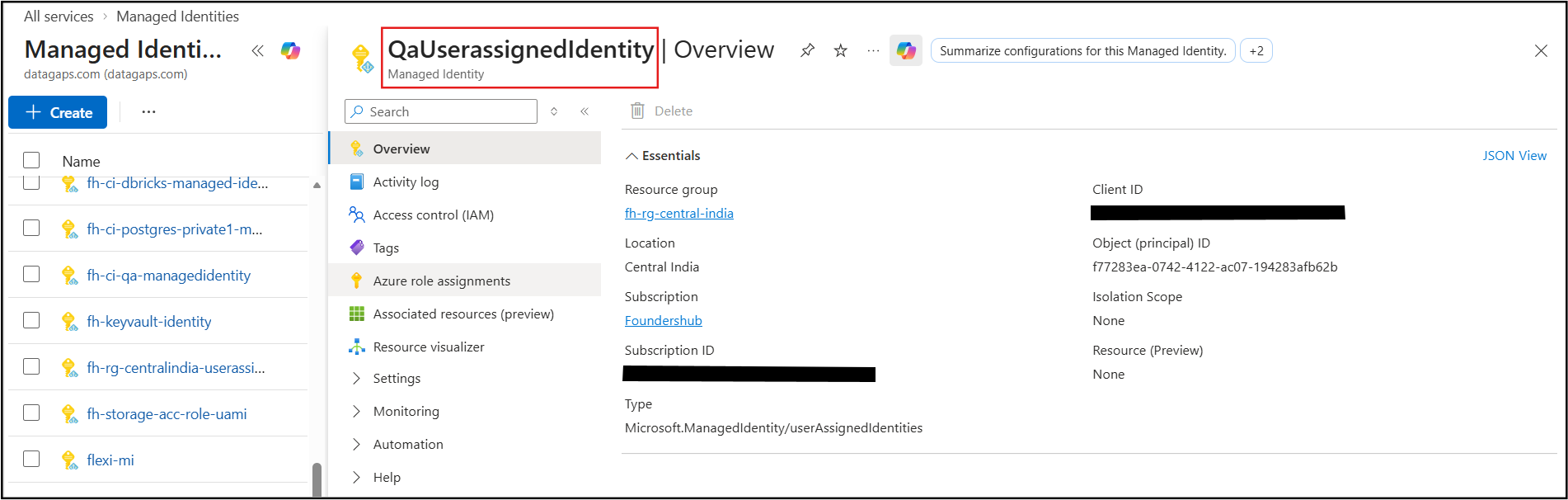
- After the deployment completes, click Go to resource.
- On the Overview page, note the Client ID. The Client ID is required in later steps.
Step 2: Assign the Managed Identity to the Virtual Machine Scale Set
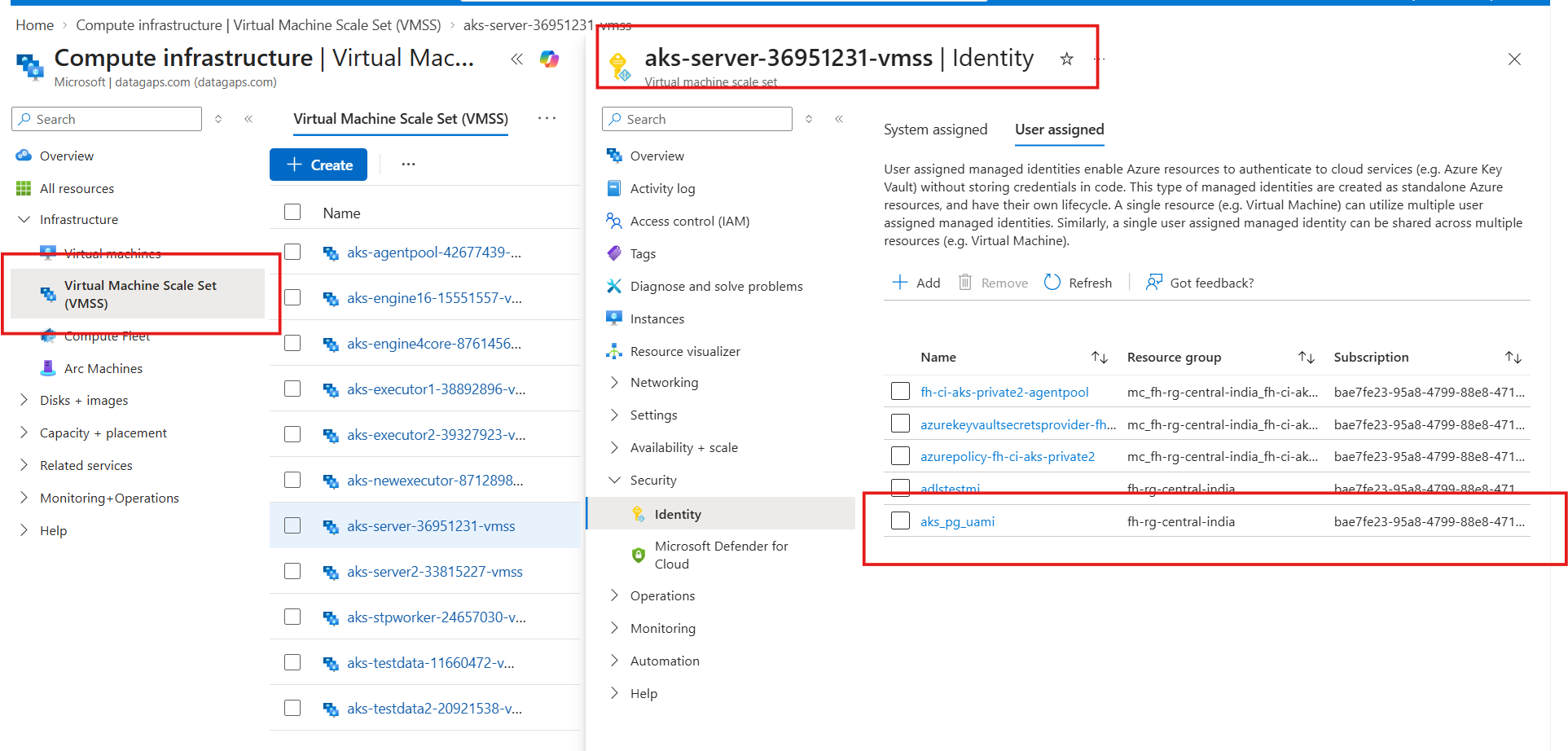
Attach the user-assigned managed identity to the Azure VM Scale Set that hosts DataOps Suite.
- In the Azure portal, search for and select Virtual machines Scale Set
- Select the VM Scale Set that hosts DataOps Suite.
- In the left navigation pane, under Security, select Identity.
- Select the User assigned tab and click Add.
- Select the user-assigned managed identity created in Step 1 and click Add.
Step 3: Install Azure CLI on the Virtual Machine
Azure CLI is required to authenticate and generate PostgreSQL access tokens. Please refer to the official documentation of Azure on Install the Azure CLI on Linux for detailed documentation.
Step 4: Authenticate to Azure Using Azure CLI
After installing Azure CLI on the Virtual Machine, authenticate to Azure using a Microsoft Entra ID account that is an administrator on the PostgreSQL Flexible Server. In Steps 4 through 7, you use this account to create the PostgreSQL role for the managed identity and grant it permissions. In Step 8, you switch to the managed identity itself. The sign-in generates an Azure access token that is used for PostgreSQL authentication.
- Open the Linux terminal session on the Azure Virtual Machine.
- Execute the following command:
Bash (Unix Shell) |
|
- After executing the command, Azure CLI generates:
- A login URL
- A unique device authentication code
- Copy the URL displayed in the terminal and open it in the web browser.
- Enter the device code displayed in the terminal.
- Click Next.
- Sign in using your Microsoft credentials.
After successful authentication:
- Azure CLI is connected to your Azure subscription.
- The terminal session can securely generate PostgreSQL access tokens.
Step 5: Connect to Azure PostgreSQL Flexible Server Using Azure CLI Authentication
After successfully authenticating to Azure using Azure CLI, the next step is to connect to the Azure PostgreSQL Flexible Server using Microsoft Entra ID authentication.
Azure Portal provides pre-generated connection commands that can be used to establish a secure PostgreSQL connection using an Azure access token.
- Navigate to the Azure portal.
- Search and select Azure Database for PostgreSQL flexible servers option.
- Select the required PostgreSQL Flexible Server.
- In the left navigation pane, go to Settings > Connect. The "Connect" page displays the PostgreSQL connection details and the required environment variable commands.
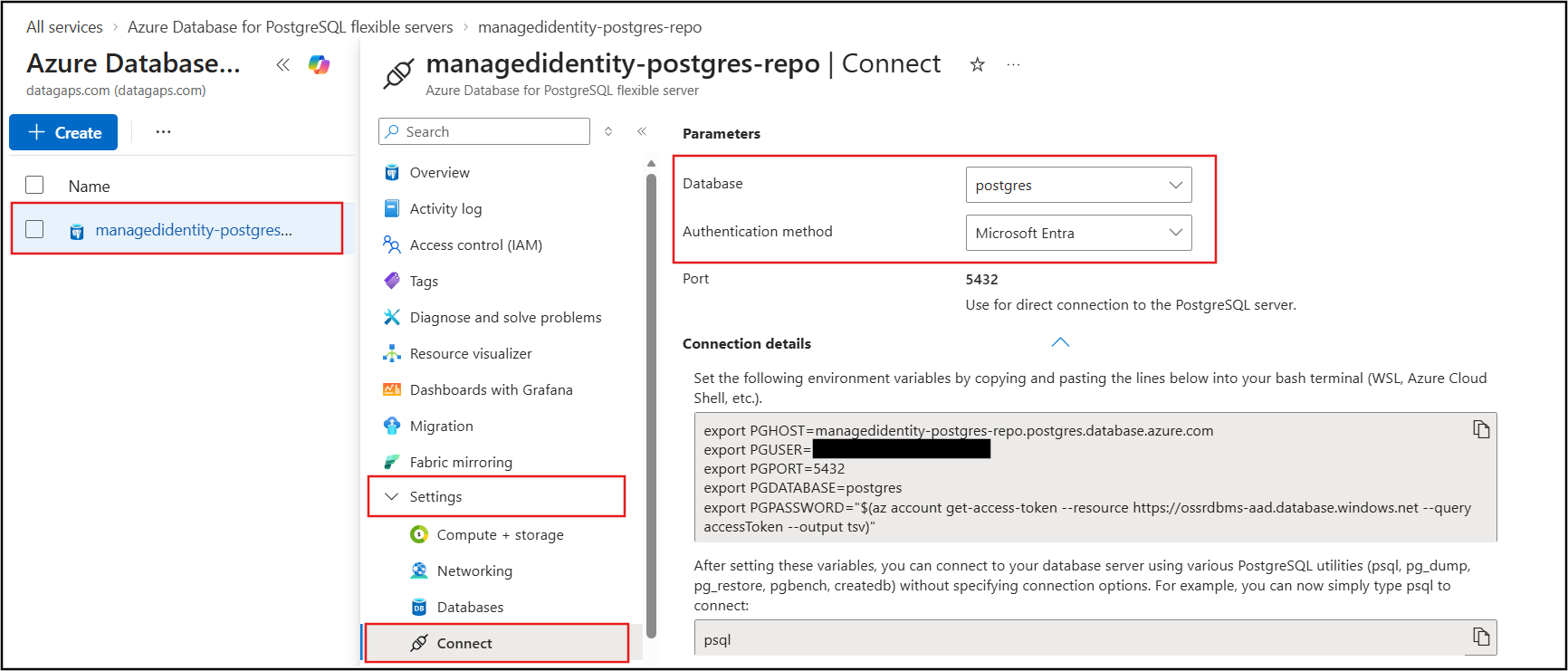
- By default, the Postgres database is selected.
- Select Microsoft Entra from the "Authentication method" drop-down. This configures the connection commands for Entra ID-based authentication.
- Configure PostgreSQL connection variables
- Generate an Azure access token dynamically
- Enable secure token-based PostgreSQL authentication
Example:
Bash (Unix Shell) |
export PGHOST=datagaps-postgres-repo.postgres.database.azure.com export PGUSER=<your-entra-id-user> export PGPORT=5432 export PGDATABASE=postgres export PGPASSWORD="$(az account get-access-token --resource https://ossrdbms-aad.database.windows.net --query accessToken --output tsv)" |
Understanding the Configuration
| Command | Purpose |
|---|---|
| PGHOST | Specifies the PostgreSQL Flexible Server hostname |
| PGUSER | Specifies the Microsoft Entra ID user |
| PGPORT | Specifies the PostgreSQL server port |
| PGDATABASE | Specifies the target database |
| PGPASSWORD | Generates an Azure access token dynamically using Azure CLI |
- After executing all the commands, run:
Bash (Unix Shell) |
psql |
After running the psql command:
- The terminal connects to Azure PostgreSQL Flexible Server
- Authentication occurs using Microsoft Entra ID token authentication
- You are logged into the PostgreSQL database successfully
You can now execute PostgreSQL SQL commands and continue configuring Managed Identity access.
Step 6: Create and Verify the PostgreSQL Principal for the User-Assigned Managed Identity VM
After successfully connecting to the PostgreSQL database using the psql command, the next step is to create a PostgreSQL principal for the user-assigned managed identity.
This step establishes the trust relationship between:
- The user-assigned managed identity
- The PostgreSQL database user/role
Run the following SQL command inside the PostgreSQL terminal:
Bash (Unix Shell) |
SELECT * FROM pgaadauth_create_principal('<user-assigned managed identity name>', false, false); |
This command:
- Creates a PostgreSQL role for the user-assigned managed identity
- Registers the managed identity within PostgreSQL
- Enables any VM that has this identity attached to authenticate to PostgreSQL using Microsoft Entra ID authentication
After creating the principal, verify whether the role was created successfully.
Run the following command:
Bash (Unix Shell) |
SELECT rolname, rolcanlogin FROM pg_roles; |
This query displays:
- All PostgreSQL roles available in the database
- Whether each role has login privileges enabled
To confirm that the role for the user-assigned managed identity exists, run:
Bash (Unix Shell) |
SELECT rolname FROM pg_roles WHERE rolname = '<user-assigned managed identity name>'; |
After executing these commands:
- A PostgreSQL role is created for the user-assigned managed identity
- The managed identity is registered successfully in PostgreSQL
- The role becomes available in PostgreSQL system roles
- The managed identity can now be granted database permissions for secure authentication access
Step 7: Grant Database Permissions to the User-Assigned Managed Identity
After creating and verifying the PostgreSQL principal, grant the required database permissions.
In this step:
- The managed identity is granted permission to connect to the target PostgreSQL database.
- Required database privileges are assigned so that the application can access and perform operations on the database securely.
Grant Database Connection Permission
Run the following SQL command inside the PostgreSQL terminal:
Bash (Unix Shell) |
|
This command:
- Grants the Managed Identity permission to connect to the target database (e.g., managedidentity)
- Allows the managed identity to establish authenticated PostgreSQL sessions
Without this permission, the managed identity cannot access the database even if authentication succeeds.
Grant Full Database Privileges
Login to the Database and run the following SQL command:
Bash (Unix Shell) |
|
This command grants
- Full access privileges on the target database
- Permission to perform database operations required by the application
Depending on the application requirements, privileges can later be restricted based on security policies.
After successfully executing the permission commands, logout from the current Azure CLI session.
Bash (Unix Shell) |
az logout |
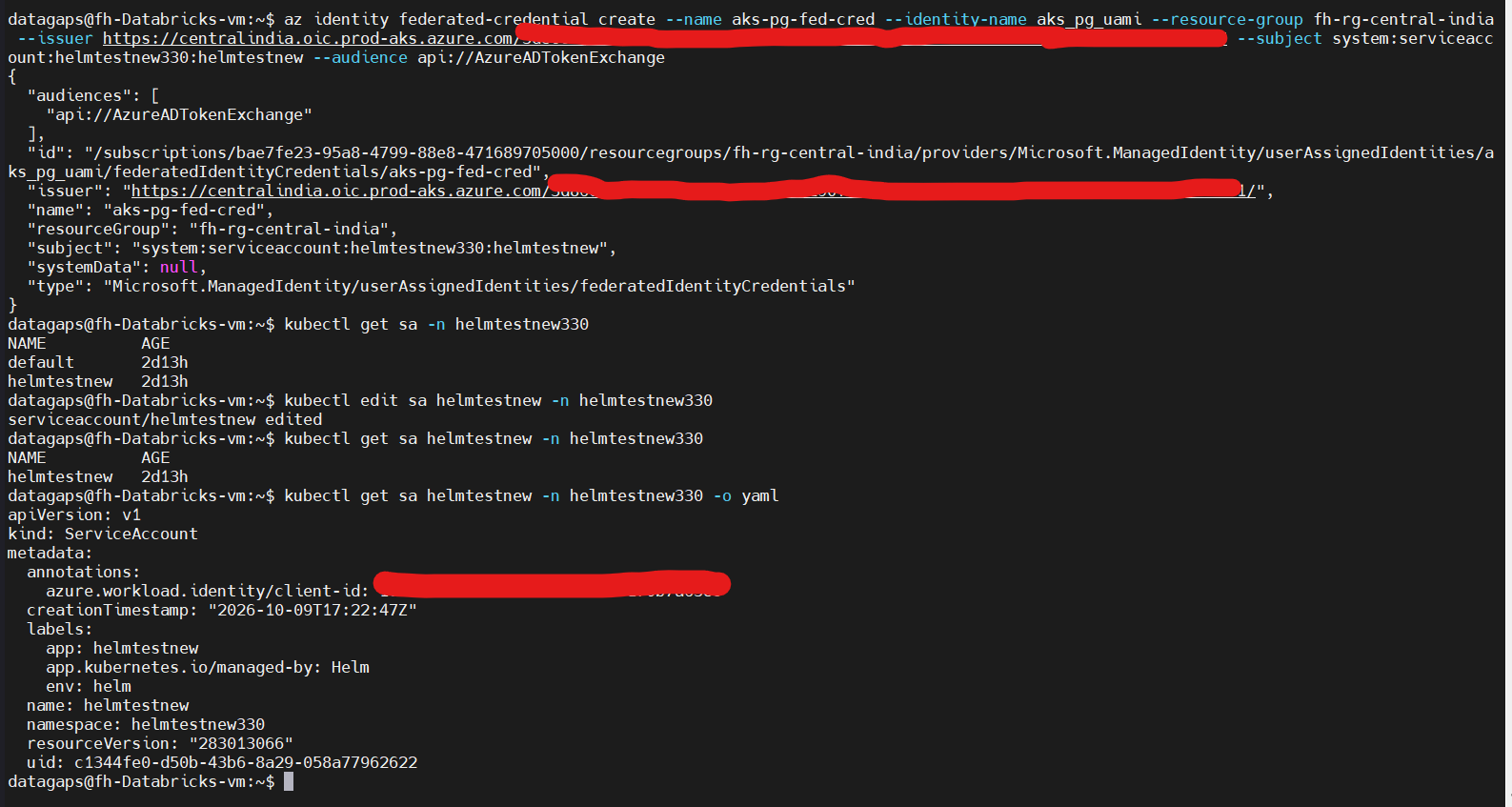
Step 8: Set up Workload Identity for this managed identity.
This involves creating a federated identity credential on the UAMI that trusts your AKS cluster’s OIDC issuer, a specific Kubernetes namespace, and a specific service account name.
-->Annotate the Kubernetes service account with the client ID, so pods using that service account can authenticate as the managed identity.
-->Add the label for dataopserver pod
# 1. Create the federated credential on the managed identity |
Step 9: Enable Managed Identity Configuration in DataOps Suite
After successfully establishing the managed identity connection between the AKS Cluster and Azure PostgreSQL Flexible Server, configure DataOps Suite to use managed identity-based authentication.
This is done by enabling the following properties:
managed_identity_profile=true repo_client_id=<client id> |
managed_identity_profile=trueinstructs DataOps Suite to use managed identity authentication, generate Azure access tokens dynamically, and connect to PostgreSQL without using database passwords.repo_client_idspecifies the Client ID of the user-assigned managed identity (noted in Step 1). DataOps Suite uses it to request tokens for the correct identity when more than one identity is attached to the VM.
Enabling these properties instructs DataOps Suite to:
- Use Managed Identity authentication
- Generate Azure access tokens dynamically
- Connect to PostgreSQL without using database password
Step 10: Validate Repository Authentication in DataOps Suite
After completing the managed identity configuration, validate that DataOps Suite can successfully authenticate and connect to Azure PostgreSQL Flexible Server using the PostgreSQL role mapped to the user-assigned managed identity.
This validation confirms that:
- Microsoft Entra ID authentication is configured correctly
- The Managed Identity PostgreSQL role is working successfully
- Repository connectivity is established properly
- DataOps Suite can access the repository database without authentication issues
Use the following steps to validate the Managed Identity-based repository authentication in DataOps Suite.
- Open the DataOps Suite URL in a browser.
- On the login page, click Manage Repository.
- Enter the PostgreSQL role associated with the user-assigned managed identity in the Repository Username field.
- Enter the PostgreSQL password in the "Repository password" field.
- Click Authenticate.
If the authentication is successful, DataOps Suite connects to Azure PostgreSQL Flexible Server using Managed Identity authentication.