
Steps to Configure Azure AD and Dataverse Integration
- Create an App Registration in Azure Active Directory
- Log in to the Azure portal.
- Navigate to Azure Active Directory.
- Select App registrations and click on New registration.
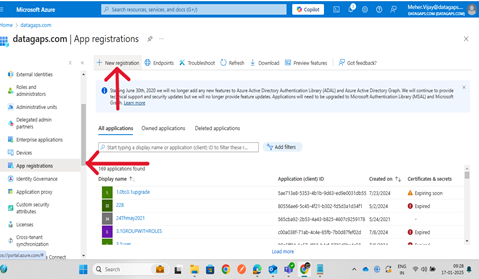
- Fill in the necessary details and register the app.
- Once the app is created, note down the Application (client) ID, Directory (tenant) ID, and other relevant details.
- Set Credentials
- In the newly created app registration, navigate to Certificates & secrets.
- Create a new client secret and note it down as it will not be visible again.
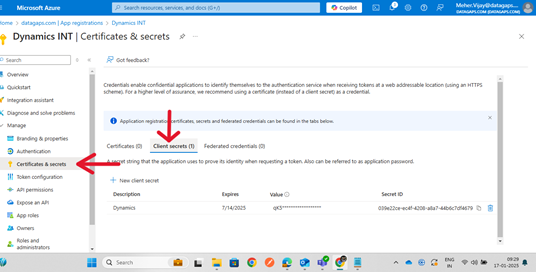
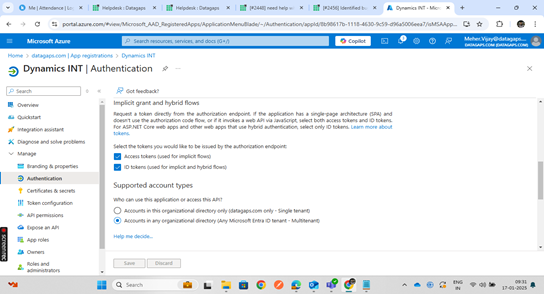
- After adding Client secretvalue we need to add authentications and need to click check box as shown below screenshots and click on save.
- Now click on API permissions to add Dynamincs CRM to get access user permissions from the Azure AD.
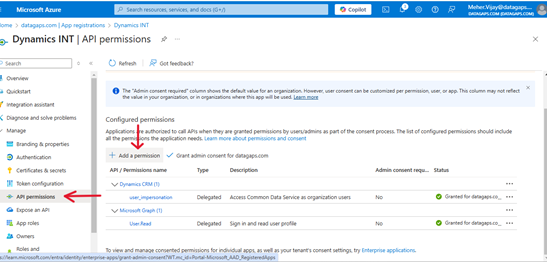
- After adding dynamics CRM to get admin access we need to click grant admin consent from Azure.
- Update the App Manifest
- Navigate to App registrations and select your app.
- Under Manage, select Manifest.
- Modify the JSON configuration as follows:
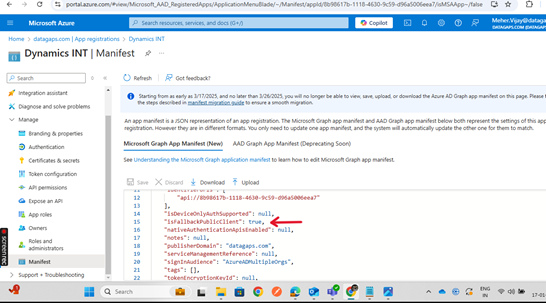
- Update the IsFallbackPublicClient setting:
- "IsFallbackPublicClient": true
- (By default, this value is set to false. Change it to true.)
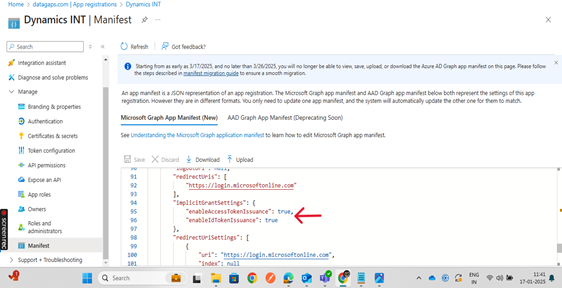
- Under Implicit grant settings, enable the following:
- "EnableAccessTokenIssuance": true,
- "EnableIdTokenIssuance": true
- (Both settings are false by default. Update them to true.)
- Ensure you also have the Dataverse URL ready for integration.
Setting Up Microsoft Dataverse Using Power Apps Admin Platform
Prerequisites
- Before proceeding, ensure that all necessary configurations have been completed in Azure Active Directory.
Steps to Set Up Dataverse
Create a Microsoft Dataverse Environment
- Creating a Microsoft Dataverse environment involves setting up a Power Platform environment, enabling Dataverse, and configuring it according to your organization's requirements.
Steps:
- Access the Power Platform Admin Center:
- Go to the Power Platform Admin Center.
- Sign in with your Microsoft account credentials.
- Navigate to Environments:
- In the left-hand menu, click on Environments.
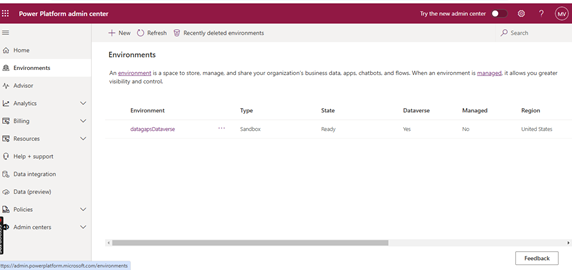
- Create a New Environment:
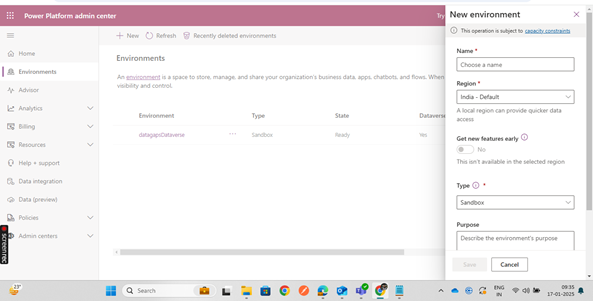
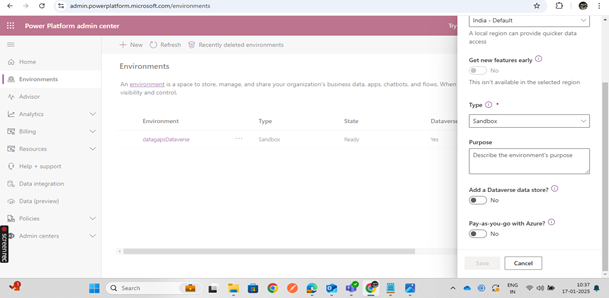
- Click on + New to create a new environment.
- Fill out the required details:
- Name: Provide a unique name for the environment.
- Region: Select the geographical region for the environment.
- Type:
- Choose Sandbox for development/testing purposes.
Enable Dataverse:
- During the environment creation process, toggle on the option to Add to Dataverse a datastore.
- Optionally, specify a Security Group to restrict access to the environment.
- Save the Environment:
- Click Save to finalize the environment creation.
Add Security Roles
- To allow users to access the environment and read data from Dataverse tables, you need to assign appropriate roles.
Steps:
- Go to Environments and click on the environment name.
- Click on Settings at the top.
- Navigate to User + Permissions and select Application Users.
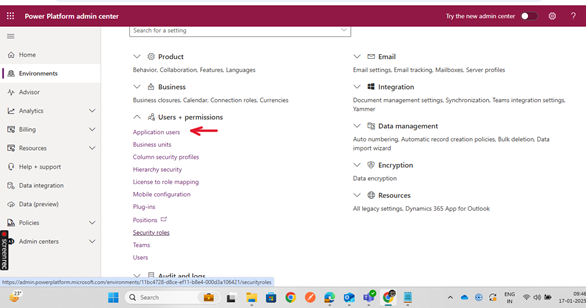
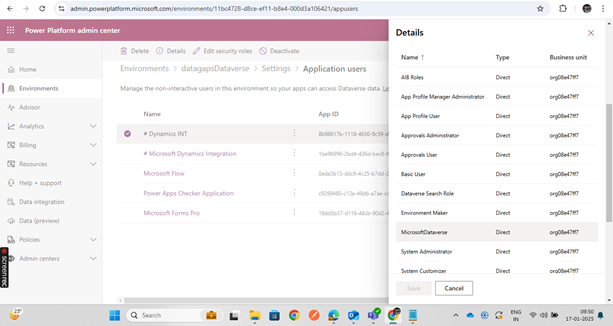
- Find the resources created from Microsoft Azure (App registration name).
- Assign the required roles to users.
Customize or Read Data from Dataverse
- Use the Power Apps Maker Portal to work with Dataverse data:
- Access the Maker Portal:
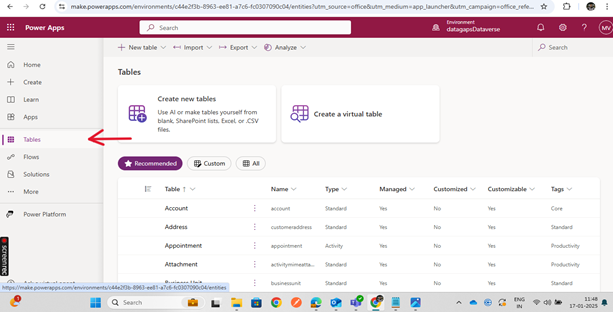
- Go to the Power Apps Maker Portal.
- View Sample Data:
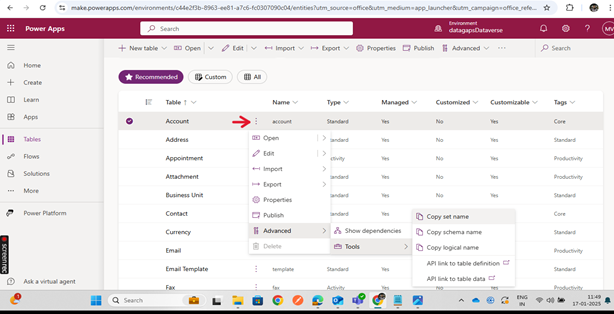
- Click on Tables to see the sample data available in Dataverse.
- Select a table to view its data.
- Read Table Data:
- Click on the table name.
- Copy the Set Name to read data from the table.
. By following these steps, you can successfully set up and manage Microsoft Dataverse for your organization, ensuring secure access and data customization